
You have several images to send, and each file must fit the same size limit. Compressing them together is convenient, but a smaller batch total does not prove that every image fits. One large photo can still exceed the cap while the other files are already small enough.
PicBean's Target Size mode applies the selected maximum to each image separately. It can keep a small PNG unchanged while reducing larger JPEG and WebP files. The ZIP download then packages those results; it has its own total size.
Set the limit before adding the batch
Open the 200 KB image compressor for a starting example. It opens in Target Size mode with Maximum size set to 200 KB, Output format set to Keep original format, and Allow resize when needed checked.
Use 200 KB only if it suits your actual requirement. PicBean uses decimal units: 200 KB means 200,000 bytes for each image. A destination may also specify accepted formats and minimum dimensions; meeting its byte limit alone does not satisfy those other rules.
- Confirm Maximum size and its KB or MB unit. Use separate batches if different files need different limits.
- Leave Keep original format selected when the recipient accepts your existing formats. A mixed batch can retain JPEG, PNG, and WebP rather than converting everything to one format.
- Leave Allow resize when needed checked only if smaller pixel dimensions are acceptable. For JPEG and WebP, quality adjustments are tried before dimensions are reduced. PNG uses a separate color-reduction strategy.
- Choose Select images and add the files together, or drop them into Drop images here. Processing starts automatically.
If the images need to retain specific dimensions, turn off resizing and be prepared for some targets to be unreachable. The quality versus resolution guide explains what each adjustment changes.
Read every row before downloading
Under Your images, compare the file count with your intended batch, then check each row's status:
| Status | What to check next |
|---|---|
| Already under target | The source fits the limit. Confirm its format and dimensions are also suitable. |
| Target met | The byte target was reached without reducing dimensions. Inspect visible detail. |
| Target met after resize | The byte target was reached, but the smaller dimensions need review. |
| Target unreachable | The available result still exceeds the cap. Do not count it as compliant. |
The ready count tells you that results are available, including downloadable results marked Target unreachable. It is not a count of files that meet your limit. Failed or canceled images also need attention before you treat a batch download as complete.
This distinction mattered in a local Chrome check on October 22, 2026. With a 100 KB target, a generated JPEG returned 126,826 bytes at 1048 × 785 and was correctly labeled Target unreachable, even though the batch showed 3 of 3 ready. Raising the example target to 200 KB allowed all three files to fit; raising a real upload limit is an option only when the recipient permits it.
What the 200 KB downloads contained
The successful check used the default 200 KB settings and three generated test images. Each individual download was fully decoded to verify its format, dimensions, transparency presence, and actual bytes.
| Input | Source bytes | Download bytes | Source dimensions | Download dimensions |
|---|---|---|---|---|
photo-large.jpg | 4,812,393 | 196,584 | 3200 × 2400 | 1048 × 785 |
png-text-alpha.png | 16,602 | 16,602 | 640 × 360 | 640 × 360 |
photo.webp | 920,902 | 197,276 | 1600 × 1200 | 1024 × 768 |
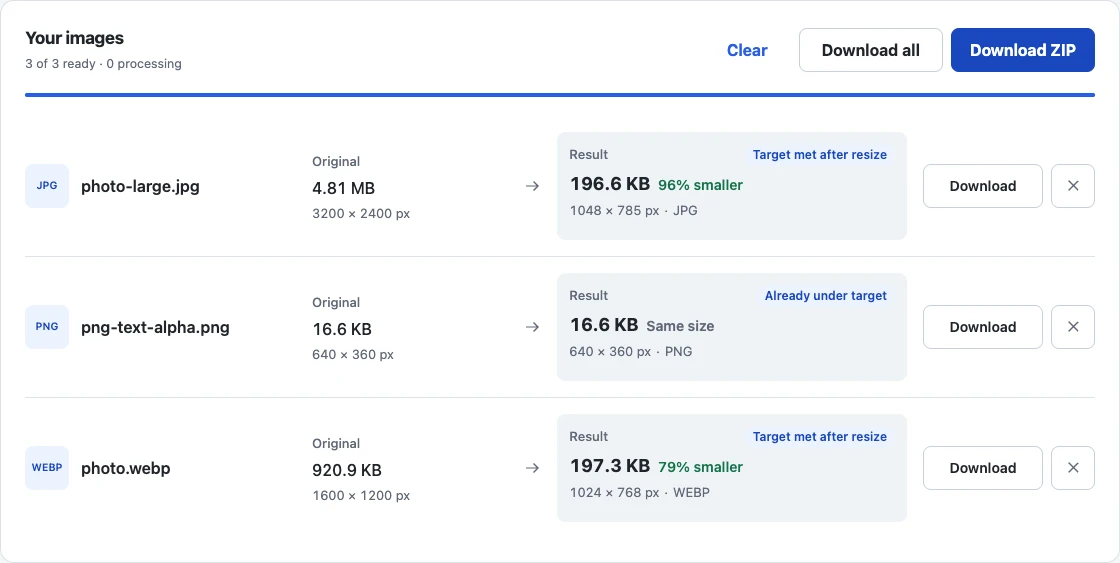
Every download was at or below 200,000 bytes. The JPEG and WebP stayed in their original formats and remained opaque. The PNG retained transparent pixels and matched its original file byte for byte: it already fit and did not need another encode.
That unchanged-file path also means Target Size should not be treated as a metadata-removal step. Keep any separate metadata checks your workflow requires.
These generated patterns demonstrate the processing and download behavior. They do not predict savings or acceptable visual quality for photographs, logos, or screenshots. Open your own downloads and inspect fine text, edges, gradients, and important detail. If a transparent PNG needs processing, check its edges over light and dark backgrounds; retained transparency does not guarantee unchanged colors.
Check the ZIP against a separate total budget
Choose Download ZIP after reviewing all required rows. In this example, the three image files totaled 410,462 bytes, and the downloaded ZIP was 410,798 bytes. Each ZIP entry matched its individual download byte for byte and passed the same image and 200,000-byte checks.
All three images met the per-file cap, but the archive exceeded 200 KB. This is expected: the setting limits each image, and the ZIP adds packaging data. It does not divide a shared byte budget among the files.
If the recipient limits the whole attachment or archive, measure the final ZIP separately. You may need fewer images or a lower per-file target, followed by another check of both detail and total bytes. Use the row's Download button for individual files, or Download all for separate completed results.
Extract a ZIP into a separate folder, confirm the expected filenames and count, and open the images before sending them. For a batch that only needs general size reduction rather than a measured cap, the mixed-format batch compression guide uses Compress mode instead.
The tool accepts up to 20 images, 25 MB per file, and 100 MB of source files per batch. A damaged file or an image beyond its decoding limits can fail independently. The illustrated run also passed network assertions rejecting external requests and upload bodies during processing and download; the image work and ZIP creation ran locally in the browser.