
Quality and resolution both affect file size, but they change an image in different ways. Quality controls how an encoder represents the pixels. Resolution controls how many pixels are present.
Reduce encoding quality first for modest savings
For JPEG or WebP photos, a moderate quality adjustment can remove bytes without changing width or height. Fine texture may become softer and block or ringing artifacts can appear if quality falls too far. Text and interface screenshots often reveal artifacts sooner than photographs. For PNG, this tool lowers the number of colors instead of using JPEG-style quality. Check gradients and semi-transparent edges; choose quality 100 in Resize or Convert to keep all decoded colors.
Quality numbers are local to an encoder. A setting of 80 in one browser or format is not guaranteed to match another. Compare the actual output rather than treating the number as a universal score.
Reduce resolution when the image is larger than its use
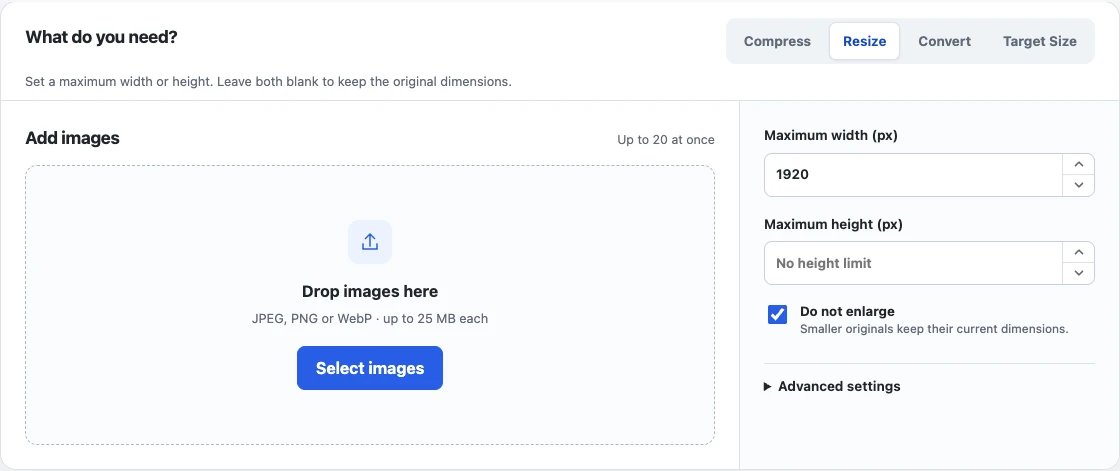
If a site displays an image at 1200 pixels wide, sending a 5000-pixel source may waste bytes and decode memory. Set a maximum width or height in the image resizer to remove that excess. Resizing is also the next step when a strict target cannot be reached at an acceptable quality.
The example below sets “Maximum width (px)” to 1920 and leaves the height blank.
The 3200 × 2400 source becomes 1920 × 1440, preserving its proportions. The result’s dimensions tell you what changed; its file size tells you how much space the new encode uses.
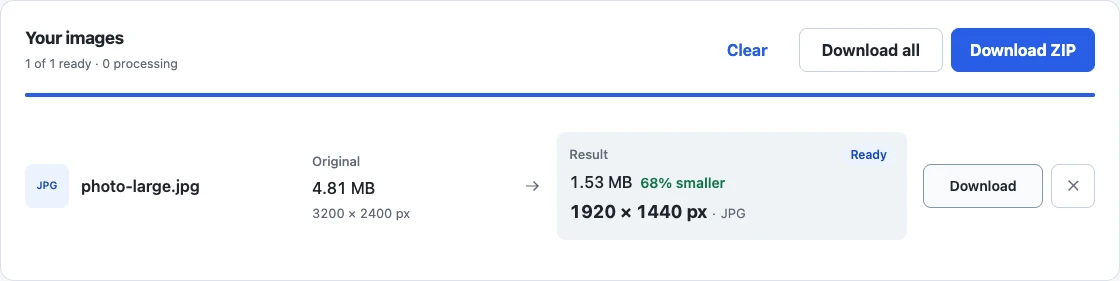
The tool preserves aspect ratio automatically. Keep “Do not enlarge” enabled: upscaling a small image creates more pixels but not more source detail, and it often increases the file size.
Use a deliberate order
- Confirm the required output format and whether transparency is needed.
- Keep the source dimensions for initial quality attempts.
- Measure the encoded byte size.
- If the target is still missed, reduce dimensions in bounded steps.
- Open the final download and inspect text, edges, gradients, and faces at the size people will see.
This order preserves useful resolution before trading it away. For target-size behavior, read how to make an image under 500 KB. For stubborn files, see why compressed images are still too large.