
Your image opens correctly, but the upload field asks for a JPG or JPEG. If its accepted-format list excludes WebP, changing the filename from .webp to .jpg will not convert the image data. You need a JPEG copy, then a separate check that it meets the destination's size and dimension requirements.
PicBean's WebP to JPG converter makes that copy in your browser. Start with an opaque still image and keep the original WebP so you can return to it if the new file loses too much detail.
Make the JPEG copy
- Open the converter and confirm the heading Convert WebP to JPG. Convert is selected, Output format is JPEG, and Quality: 82 is the starting setting.
- Choose Select images, or drop your WebP files into the page. Processing starts automatically; there is no separate conversion button.
- Wait for each result to become ready. Check the output format and dimensions in Result. The format badge beside the filename identifies the original, so seeing WebP there does not mean conversion failed.
- Choose Download beside the result to save its
.jpgcopy. Open the downloaded image and inspect it before submitting it to the destination.
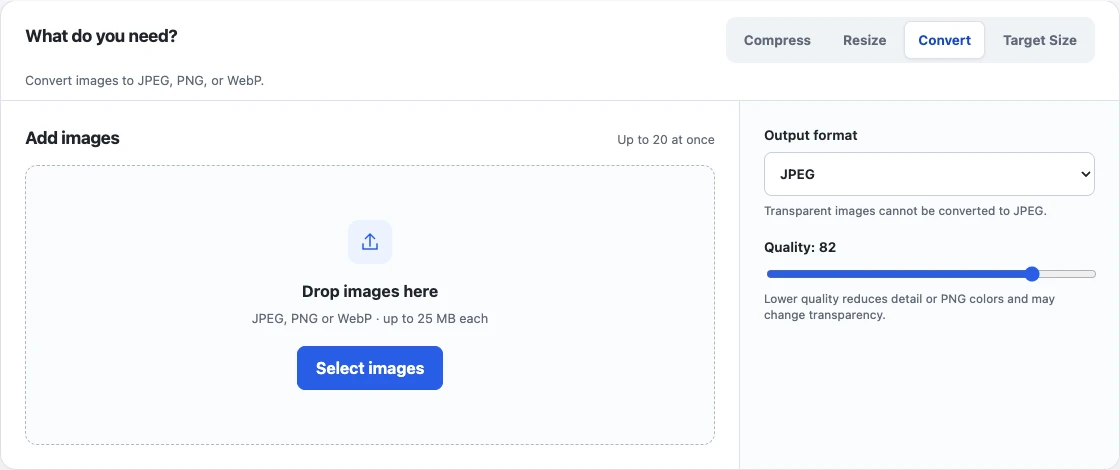
The default conversion keeps the decoded image's dimensions. Quality controls JPEG encoding; it does not set a maximum file size or resize the picture. If the output needs adjustment, change Quality, wait for the automatic update, and download the new result. The tool processes the original input again rather than repeatedly encoding your last download.
For several images, Download ZIP collects the completed results into one archive. Extract it before choosing an image in a JPEG-only upload field. Download all downloads the completed files individually. Check that every intended file finished: a downloadable batch does not mean a failed item has been converted.
What the actual downloads contained
On October 18, 2026, a local Chrome 155 run used the page's default JPEG output and quality 82 with two generated, non-sensitive WebP patterns. Both individual downloads and both entries in the downloaded ZIP were decoded and checked.
| Input | Original bytes | Download | Download bytes | Output dimensions |
|---|---|---|---|---|
photo.webp | 920,902 | photo.jpg | 914,404 | 1600 × 1200 |
extreme-tall.webp | 127,148 | extreme-tall.jpg | 125,546 | 64 × 4096 |
Both outputs were JPEG images without transparency, and both retained their input dimensions. The ZIP contained the same two filenames, with matching byte counts, formats, and dimensions. The interface rounds sizes for display; the table uses the downloaded files' byte counts.
These synthetic patterns verify conversion and download behavior. They are not a photo-quality benchmark, and their small size reductions do not predict what your images will do. A JPEG copy can be larger than its WebP source. The useful result here is a checked JPEG file, not a guaranteed saving.
Check three things before submitting
File size. Compare the downloaded JPEG with the destination's stated limit. Convert mode does not enforce a byte cap. If JPEG is required alongside a strict limit, choose Target Size, explicitly select JPEG under Output format, and enter the required Maximum size. Check the format again when switching modes because each mode keeps its own settings. The target-size guide explains how to interpret a result that meets the limit or remains above it.
Dimensions. Conversion alone will not satisfy a smaller width or height requirement. Check the receiving form's actual rules and resize when needed. A very tall image can convert correctly and still have unsuitable proportions for the destination; the 64 × 4096 test above demonstrates preserved dimensions, not upload suitability.
Visible detail. Inspect text, edges, gradients, and important subject detail in the saved file. JPEG conversion is lossy and cannot restore detail already missing from the WebP. Raising quality does not recover that detail. For help deciding whether JPEG fits the image at all, see when to use JPEG.
When conversion stops or the upload still fails
PicBean rejects transparent images when JPEG output is selected because JPEG cannot retain transparent areas. It does not silently add a white background. If transparency matters, keep WebP or use PNG where the destination accepts it. If JPEG is mandatory, first create an opaque version with an intentionally chosen background in an editor, then convert that version.
The tool accepts up to 20 files, with a 25 MB limit per file and a 100 MB total input limit. Corrupt files and images exceeding the decoded-size limits can also fail. Renaming an unsupported file does not repair it or make it a supported image.
The tested conversion and downloads ran locally, with network checks rejecting external requests and upload bodies. That does not mean the website has no visit analytics; its Web privacy page explains that distinction. Uploading the finished JPEG to another service is a separate action governed by that destination's requirements. Open the saved file, verify its properties, and submit that checked copy while retaining your original.