
Job portals vary, and their limits can change. Start by reading the specific field near the upload control: note the accepted format, maximum bytes, dimensions, and whether the document is meant to be a photo, scan, or screenshot.
Follow the portal’s stated requirement
Do not rely on a generic “job application size.” If the portal names a byte limit, open the image compressor, choose Target Size, and check the unit before entering a value. Maximum size uses KB (1 KB = 1,000 bytes); divide a stated byte limit by 1,000 and round down to a whole KB to stay within it. A successful result must be measured at or below the target; if the tool says the target is unreachable, raise the limit only if the portal allows it or reduce dimensions deliberately.
For a profile photo, JPEG is often compatible when the image is opaque. A screenshot or document-like image may keep text clearer as PNG or WebP, subject to the accepted formats. Transparent input must not be silently changed to JPEG.
For example, the 500 KB preset starts with Maximum size set to 500 KB and Allow resize when needed enabled. Use the portal’s actual limit here; 500 KB is an example, not a requirement shared by job portals.
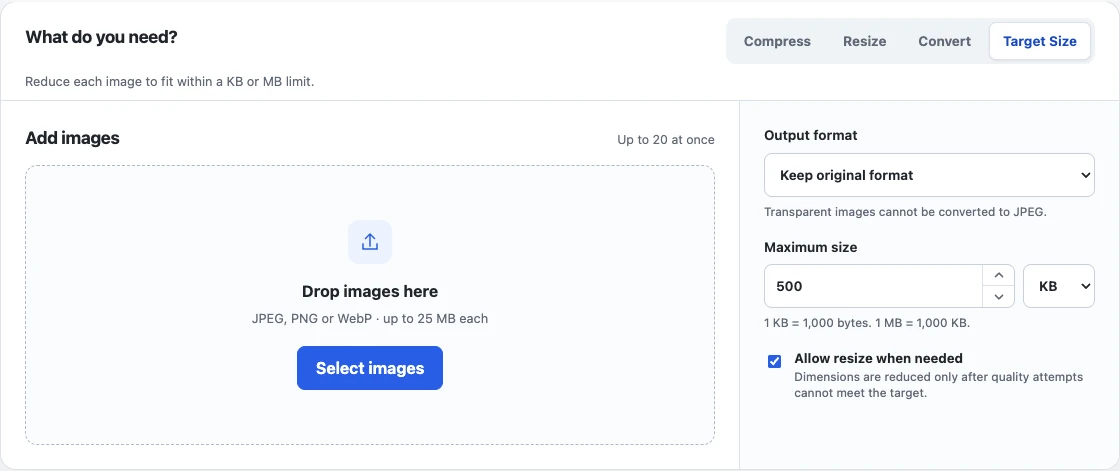
In a generated sample, the downloaded JPEG was 497,193 bytes, with dimensions reduced from 3200 × 2400 to 2048 × 1536. That meets the example byte limit, but the smaller dimensions still need to satisfy the portal’s separate requirements.
Protect legibility and identity details
Open the result and inspect names, dates, small text, signatures, and facial detail. Avoid repeated re-encoding. Keep the source outside the upload folder and download a new derivative with a recognizable filename.
Browser re-encoding can remove or change EXIF and color metadata. That can be helpful for reducing incidental metadata, but this compressor is not a metadata inspection or guaranteed removal tool.
If the form gives a 500 KB maximum, follow the 500 KB measured workflow. For document-like captures, use the screenshot guide to protect text edges.