
A photograph saved as PNG can take up much more space than you expected, even at modest dimensions. Before making the picture smaller on screen, try changing its format. A WebP copy may use fewer bytes at the same width and height, but the saving can come with softer detail.
This is a useful experiment when you have a PNG photo and can use WebP in its place. Keep the original: the smaller copy is a candidate for display, not a replacement for your editing source.
Start with conversion at the original dimensions
Open the PNG to WebP converter. The page starts in Convert mode with Output format set to WebP and Quality: 82. Those are the settings used in the example below.
- Leave Convert selected so the photo keeps its pixel dimensions.
- Use Select images to choose your PNG photo, or drop it into Drop images here. Processing starts automatically.
- In the completed row, compare Original with Result. Check that the result says WEBP and has the same width and height as the source.
- Click the row's Download button. Open the saved file and inspect it before deciding to use it.
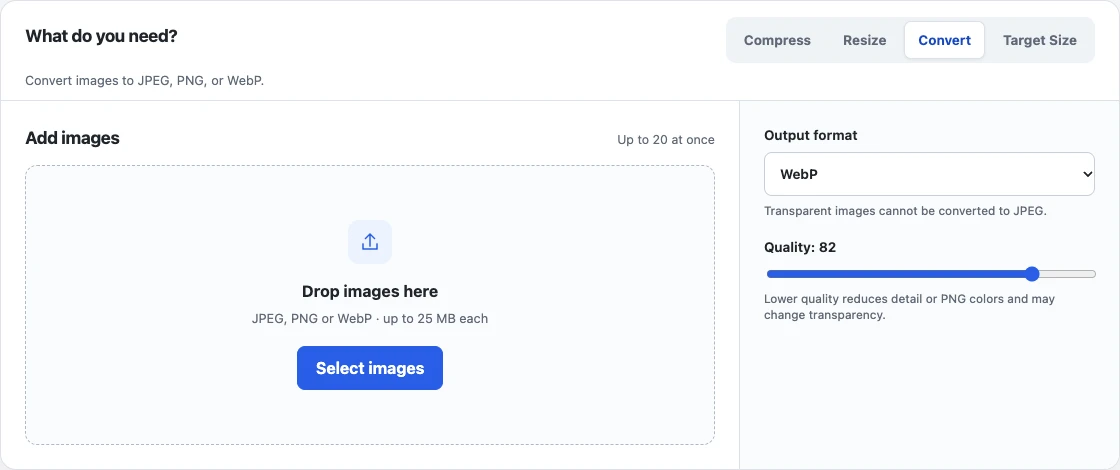
The quality number is an encoding setting, not a percentage of the original detail retained. It is also not a file-size limit. A successful conversion can still produce a file that is too large for your needs.
A downloaded photo example
In a local Chrome check on October 18, 2026, a 960 × 540 PNG of a coffee cup produced the following result at the default settings:
| File | Actual size | Dimensions | Format |
|---|---|---|---|
| Input photo | 1,008,914 bytes | 960 × 540 | PNG |
| Downloaded copy | 39,266 bytes | 960 × 540 | WebP |
The downloaded file was decoded to verify its format, dimensions, and lack of transparent pixels. Download ZIP was checked too: its photo-coffee.webp entry decoded to the same dimensions and byte count as the individual download.
This example uses the project's CC0 coffee-photo sample, derived from a photograph by ProjectManhattan. The PNG was generated from a resized JPEG derivative, so it is not a camera original or a benchmark for all PNG photographs. Converting that derivative to PNG did not restore detail already lost in its earlier JPEG encoding.
The much smaller WebP also changed the picture. In a side-by-side inspection, fine wood grain and shading on the cup looked softer. Keeping 960 × 540 pixels did not mean keeping all the original detail. This distinction is explained further in image quality versus resolution.
Decide whether the smaller copy is useful
Compare your download with the original at both its intended display size and 100% zoom. Look at textured areas, subtle shadows, curved edges, and any lettering. A small thumbnail can hide changes that become distracting when the same image is opened larger.
If detail looks too soft, increase Quality and wait for the result to update before downloading again. PicBean recalculates from the original file when the setting changes, so you do not need to feed the downloaded WebP back into the converter. Compare the new download's appearance and size; a higher setting does not guarantee an identical image or a smaller file.
Use the WebP only when the size saving is useful, the visible changes are acceptable, and the destination actually opens it. If the output is larger or the image no longer looks right, keep the PNG. Renaming a .png extension to .webp does not perform a conversion.
If you are starting with a screenshot, diagram, or transparent graphic instead of a photo, use different inspection priorities. Small text and alpha edges need particular care; PNG versus WebP covers those tradeoffs. The opaque coffee sample above does not test transparent edges.
When conversion alone is not enough
If you must keep PNG, changing to WebP cannot satisfy that requirement. If you must fit a particular byte limit, Convert does not enforce it. Use the appropriate target-size workflow and check the actual downloaded bytes, as described in making an image 500 KB or less.
For very large photos, smaller dimensions may be a more useful next step than repeatedly lowering quality. Choose dimensions based on where the image will appear, and keep a larger source for future uses.
The converter accepts files up to 25 MB each, with up to 20 images and 100 MB of source files in a batch. A damaged file or an image beyond the decoding limits may fail even if its extension is PNG. Start with one photo, confirm that its download works, then apply the same checks to the rest of your images.